Have you ever wondered how to add previous, next, and done buttons to the keyboard in your iOS app?
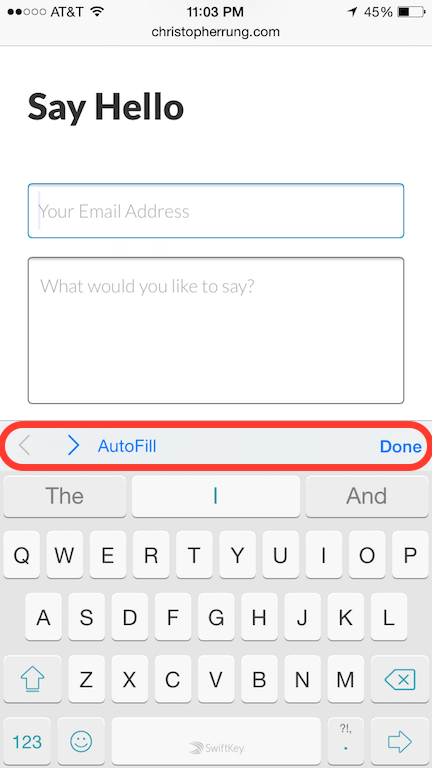
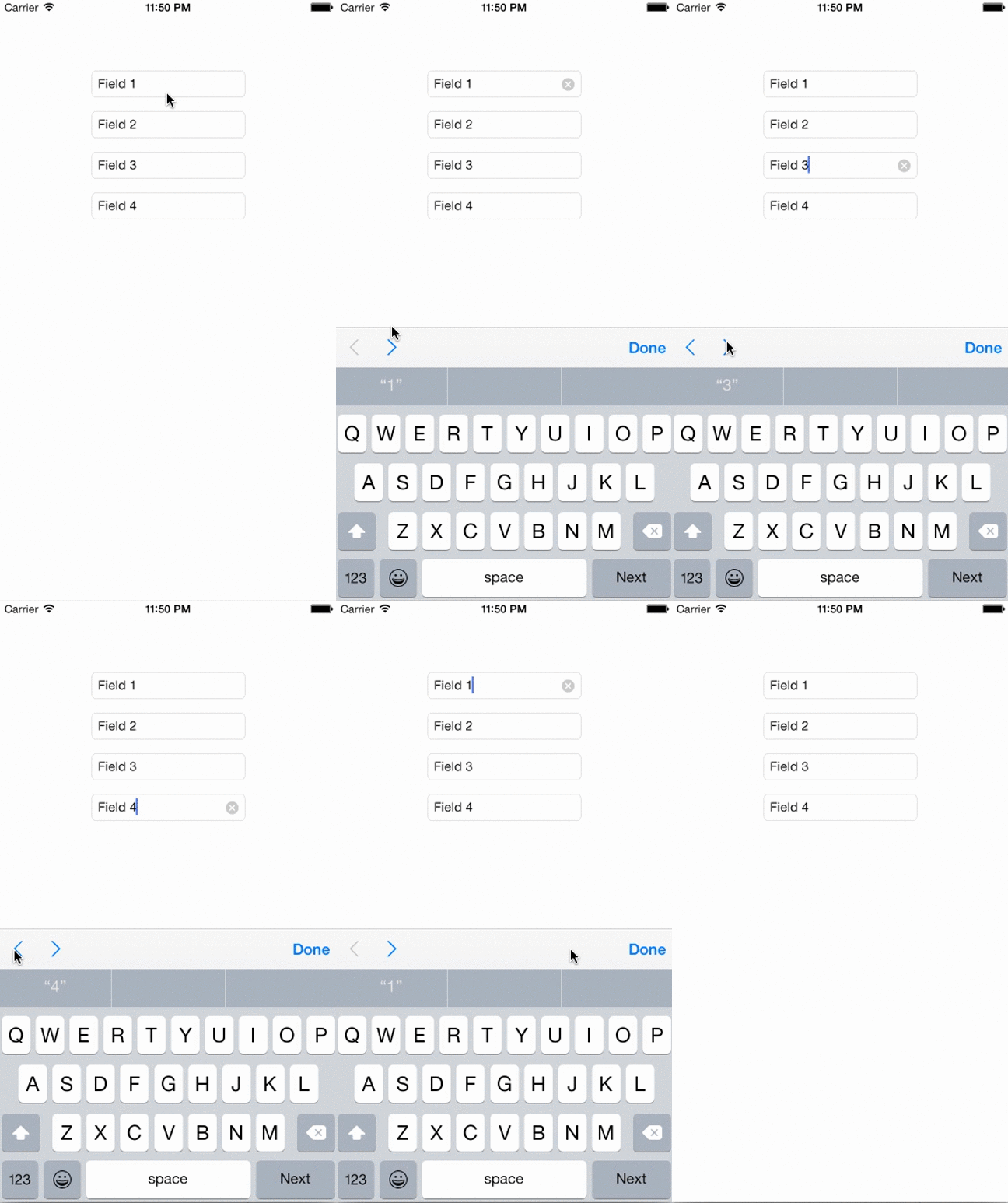
This post walks through how to add the area above the keyboard — known as an input accessory view — to UITextFields in your project. The finished product looks like this:
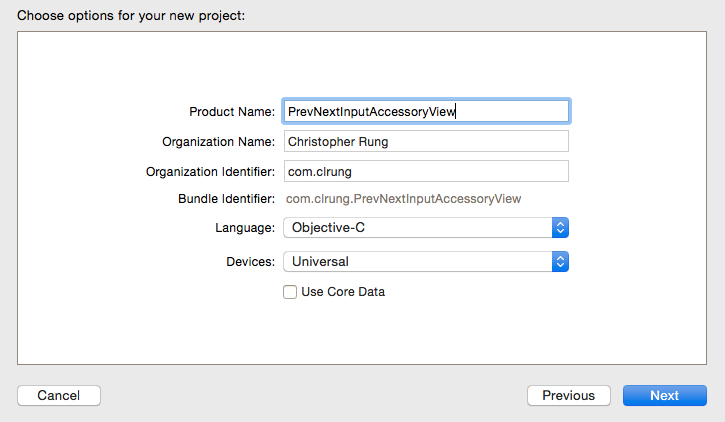
Ready? Open Xcode, select File > New > Project, and choose Single View Application. This tutorial uses Objective-C.
Set Up the Storyboard
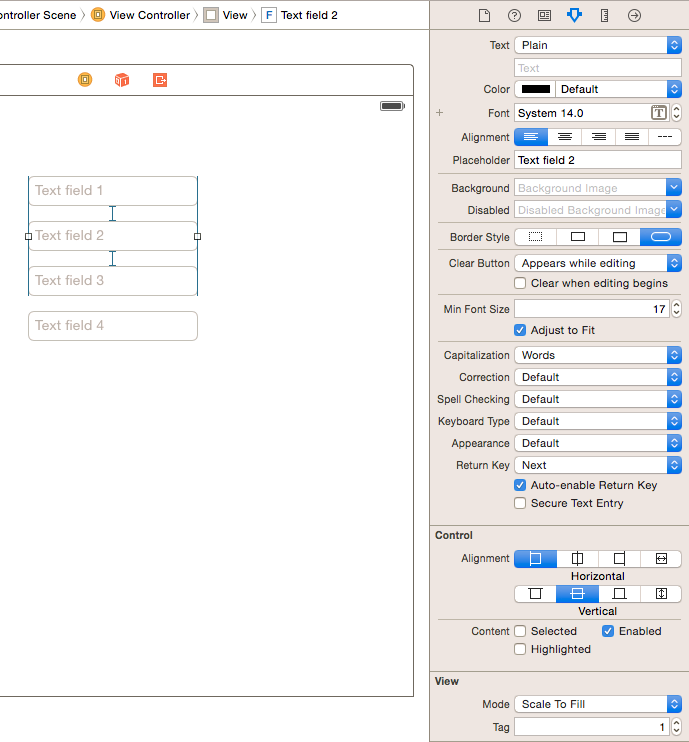
Open the Storyboard and drag four text fields onto the canvas. In the Attributes Inspector, set optional placeholder values ("Text field 1," "Text field 2," etc.). Change the first 3 text fields' return key to "Next" and the last one to "Done." Enable "Auto-enable Return Key" to require input before advancing.
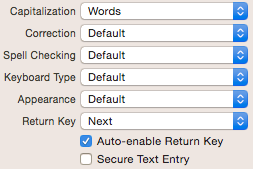
Set the tag parameter for each text field (values 0–3). This lets us differentiate between fields in code via textField.tag.
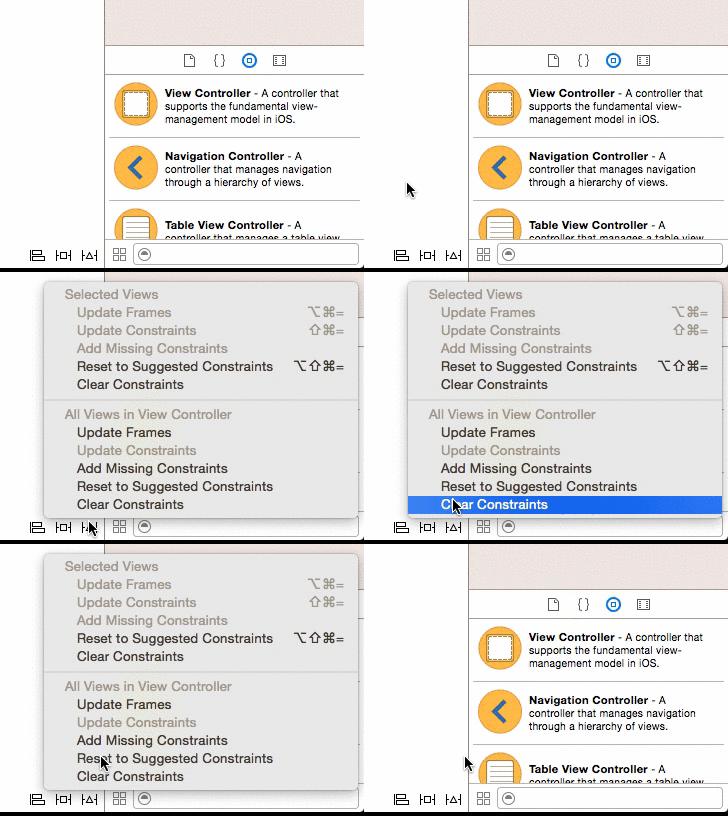
Resolve auto layout by using each view's suggested constraints:
Create an Outlet Collection
Open the Assistant Editor:
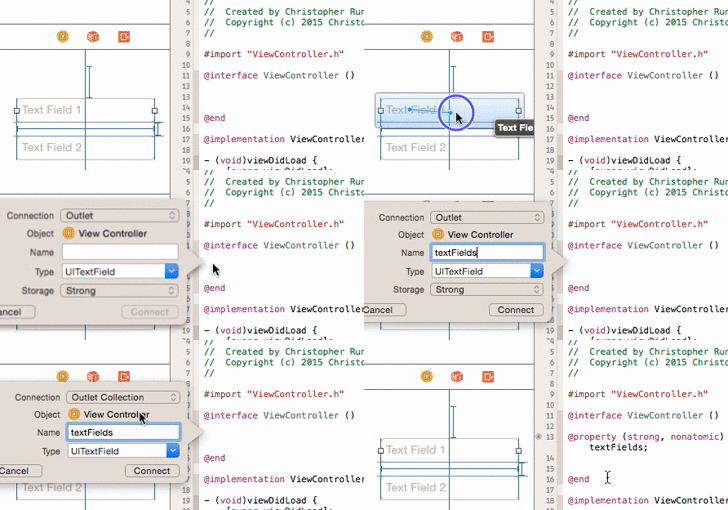
Command-drag from a text field to the area between @interface and @end. Choose "Outlet Collection" as the connection type and name it textFields. Then Command-drag each remaining text field to the same collection.
The Code
Under the textFields array, declare a UITextField to track the active field and an NSArray to hold the accessory views:
@property (strong, nonatomic) UITextField *activeTextField;
@property (strong, nonatomic) NSArray *inputAccessoryViews;
Write a setter for activeTextField:
- (void)setActiveTextField:(UITextField *)activeTextField {
    _activeTextField = activeTextField;
}
Add navigation methods that use the active field's tag:
- (void)goToPrevField {
    [[_textFields objectAtIndex:(_activeTextField.tag - 1)] becomeFirstResponder];
}

- (void)goToNextField {
    [[_textFields objectAtIndex:(_activeTextField.tag + 1)] becomeFirstResponder];
}

- (void)dismissKeyboard {
    [[_textFields objectAtIndex:_activeTextField.tag] resignFirstResponder];
}
Create the setupInputAccessoryViews method to build four toolbars — one per text field — each containing previous, next, and done buttons:
- (void)setupInputAccessoryViews {
    _inputAccessoryViews = [[NSArray alloc] initWithObjects:
        [[UIToolbar alloc] init], [[UIToolbar alloc] init],
        [[UIToolbar alloc] init], [[UIToolbar alloc] init], nil];

    for(UIToolbar *accessoryView in _inputAccessoryViews) {
        UIBarButtonItem *prevButton  = [[UIBarButtonItem alloc] initWithBarButtonSystemItem:101 target:nil action:@selector(goToPrevField)];
        UIBarButtonItem *nextButton  = [[UIBarButtonItem alloc] initWithBarButtonSystemItem:102 target:nil action:@selector(goToNextField)];
        UIBarButtonItem *doneButton  = [[UIBarButtonItem alloc] initWithTitle:@"Done" style:UIBarButtonItemStylePlain target:nil action:@selector(dismissKeyboard)];
        UIBarButtonItem *flexSpace   = [[UIBarButtonItem alloc] initWithBarButtonSystemItem:UIBarButtonSystemItemFlexibleSpace target:nil action:nil];
        UIBarButtonItem *placeholder = [[UIBarButtonItem alloc] initWithTitle:@"" style:UIBarButtonItemStylePlain target:nil action:nil];

        [accessoryView sizeToFit];
        [accessoryView setItems:[NSArray arrayWithObjects:prevButton, placeholder, nextButton, placeholder, flexSpace, placeholder, doneButton, nil] animated:YES];
    }

    // Disable prev on first field, next on last
    ((UIBarButtonItem *)[((UIToolbar *)[_inputAccessoryViews objectAtIndex:0]).items objectAtIndex:0]).enabled = NO;
    ((UIBarButtonItem *)[((UIToolbar *)[_inputAccessoryViews objectAtIndex:3]).items objectAtIndex:2]).enabled = NO;
}
In viewDidLoad, call setupInputAccessoryViews and assign the views:
[self setupInputAccessoryViews];

for(UITextField *field in _textFields) {
    [field addTarget:self action:@selector(setActiveTextField:) forControlEvents:UIControlEventEditingDidBegin];
    [field setInputAccessoryView:[_inputAccessoryViews objectAtIndex:field.tag]];
}
Build and run — you can now navigate through the text fields using the accessory view buttons.
Making the Return Key Work
Assign each text field's delegate to the View Controller:
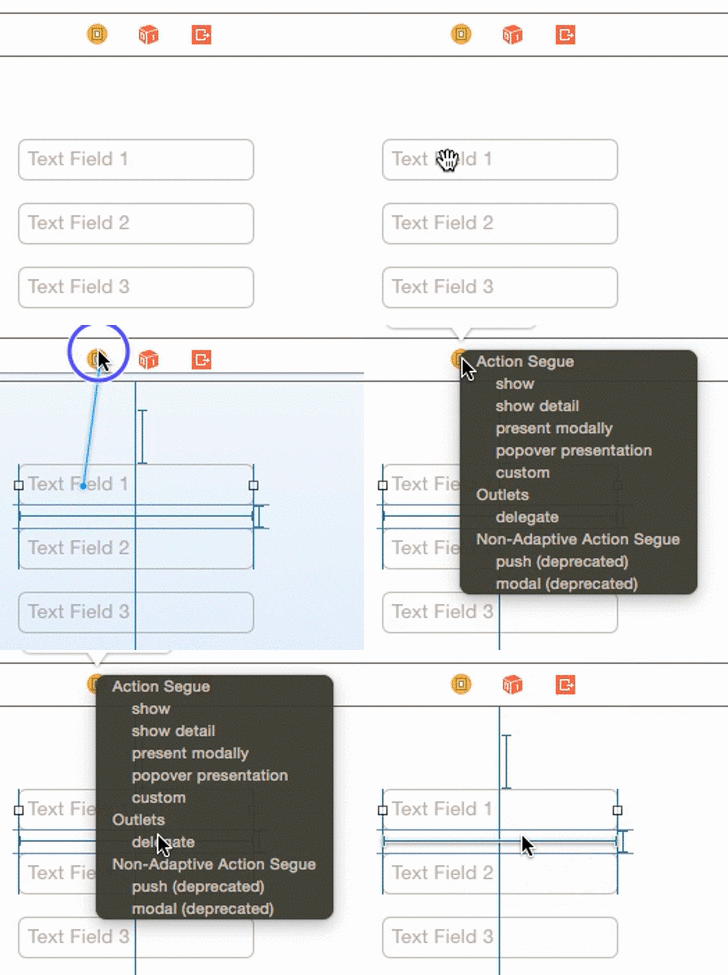
Then implement textFieldShouldReturn::
- (BOOL)textFieldShouldReturn:(UITextField *)textField {
    if (textField.tag < 3) {
        [[_textFields objectAtIndex:(textField.tag + 1)] becomeFirstResponder];
    } else if (textField.tag == 3) {
        [[_textFields objectAtIndex:textField.tag] resignFirstResponder];
    }
    return YES;
}
The full source is available on GitHub.